Settings
The Settings page (sidebar → Settings) groups everything together information about the server itself, rather than your fleet — from the clock all the way to the update channel.
Basic
-
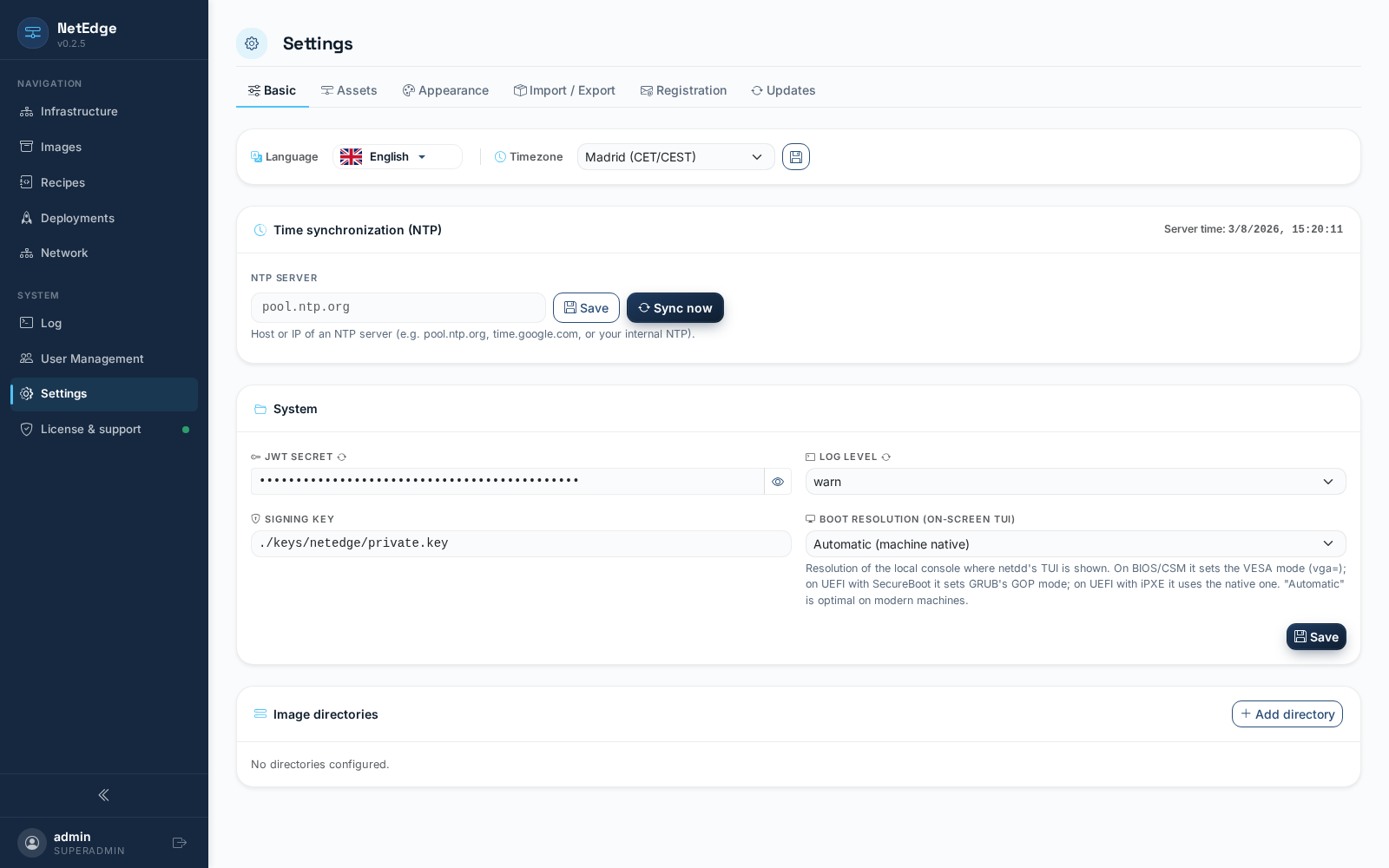
Language and Time Zone — the interface language (the same seven languages available throughout NetEdge) and the server's time zone, selected from a consolidated list of IANA zone names.
-
Time Synchronization (NTP) — the NTP server used by the host at NetEdge to keep your clock set to the correct time (
pool.ntp.orgby default), with a live display of the current server time and a button Sync now to force an immediate correction instead of wait for the next scheduled synchronization. -
System:
Field What is JWT Secret Key The secret used to sign login sessions. Changing it invalidates all existing sessions. A restart is required for the change to take effect. Log Level error/warn/info/debug— how detailed the server logs themselves are (see Log). Requires a restart.Signature Key Path to the private key used by NetEdge to sign the sublicenses for each deployment for netdd.Startup Video The screen resolution that clients use for the on-screen text console during cloning — Automatic (native to the machine; recommended for modern hardware) or a fixed resolution/plain text mode for older or unusual video hardware. -
Image directories — the folder (or folders) on the disk where where the uploaded and captured images are stored. Each directory contains a disk usage bar (used/free/total), how many images it contains, and how much space they take up, as well as quick steps to mark a set the directory as the primary one, clean up orphaned temporary files, or leftovers, or delete a directory that is no longer the primary one. Add directory contains another path — useful for distributing images to more from a disk or a network-mounted drive.
Assets
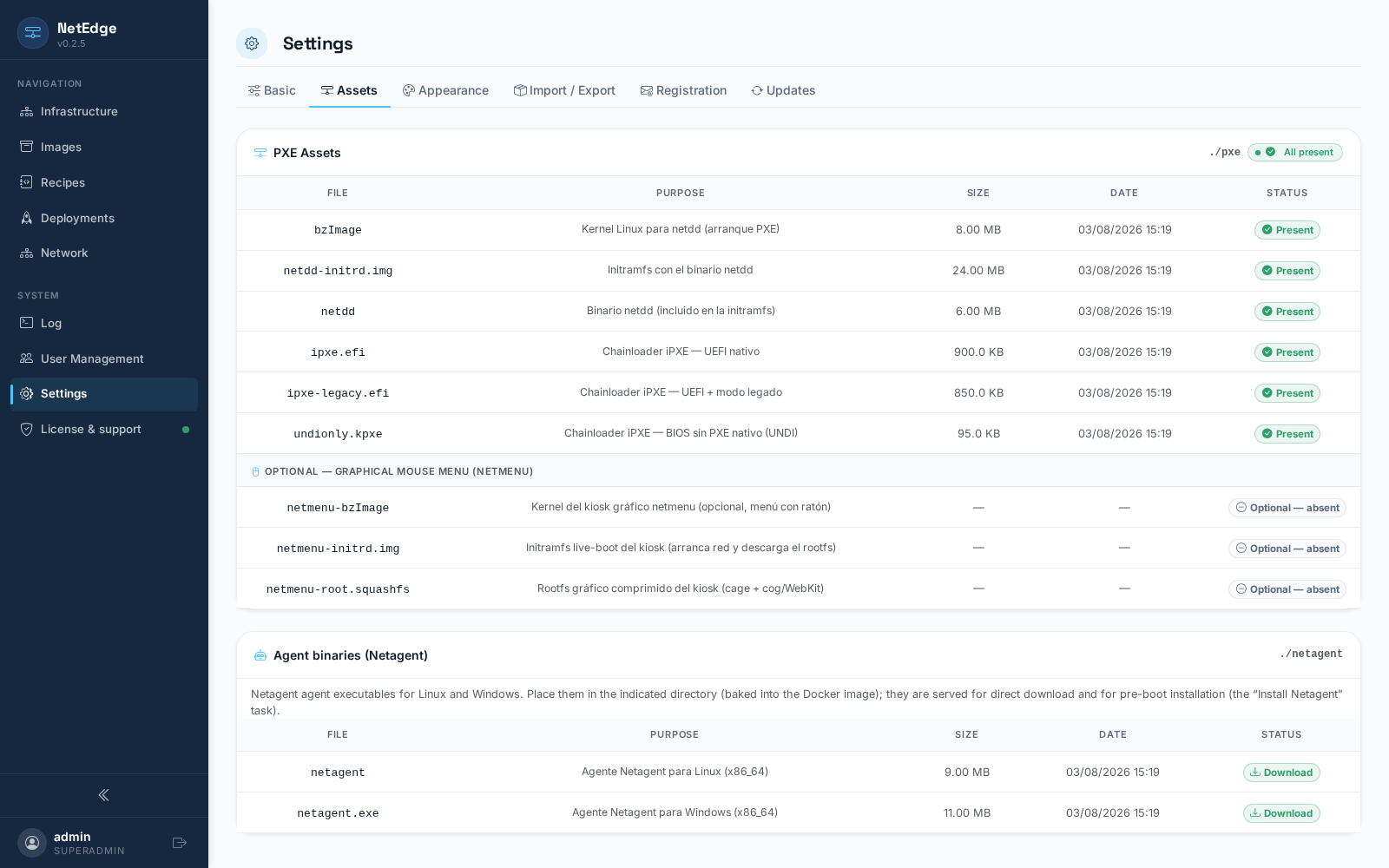
A status table for the files on which the chain depends
boot PXE from NetEdge — the Linux kernel, the initramfs it carries
netdd, the netdd binary itself, and the iPXE/UNDI chainload files
for BIOS and UEFI clients. Each row shows its size and last modified date
modification, and whether the file exists; a badge on the
The top of the card shows at a glance whether everything you need is on it
its place.
Appearance
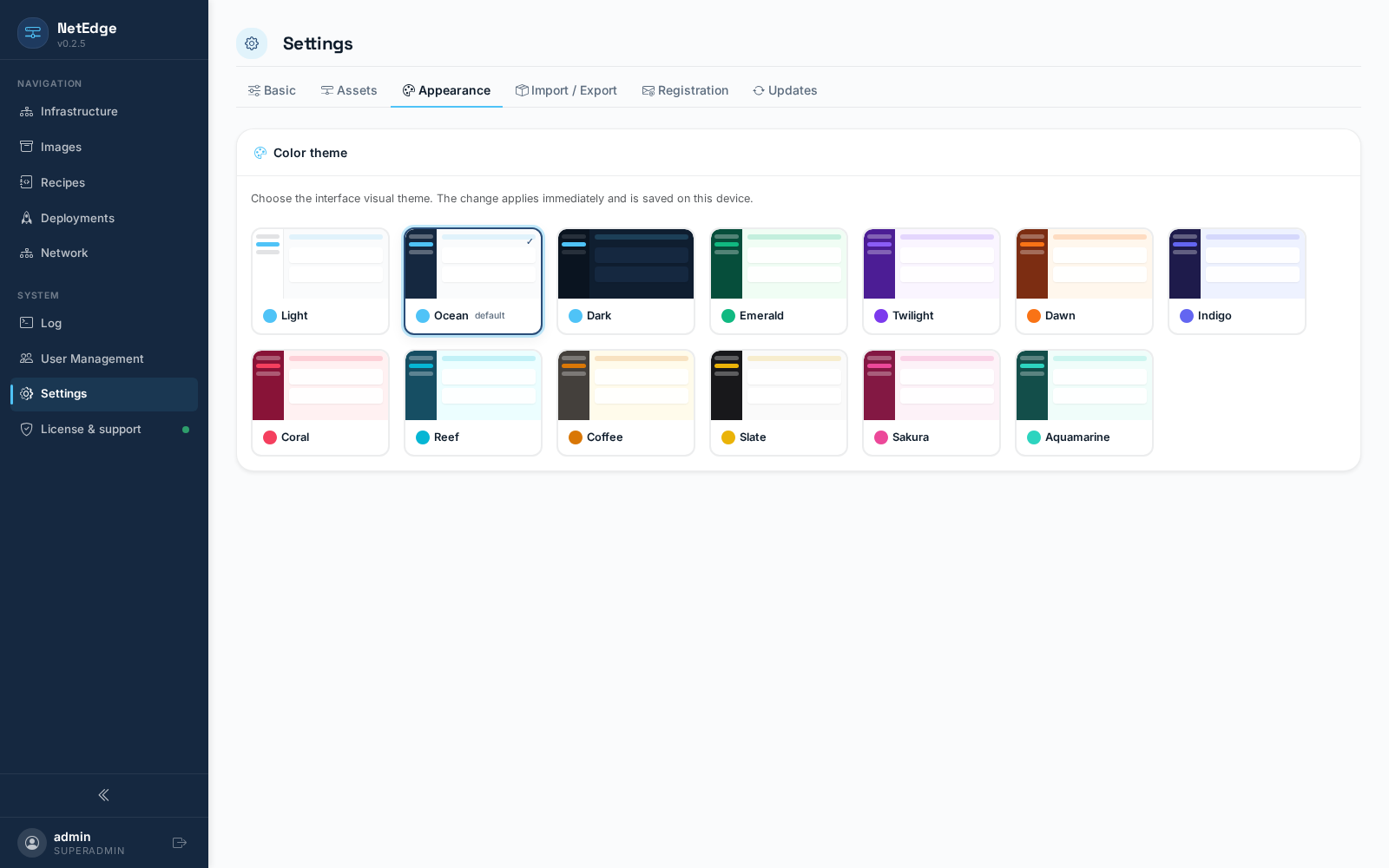
Thirteen color themes to choose from—light, dark, and several variations of accent — they're applied instantly and saved for your next visit.
Import / Export
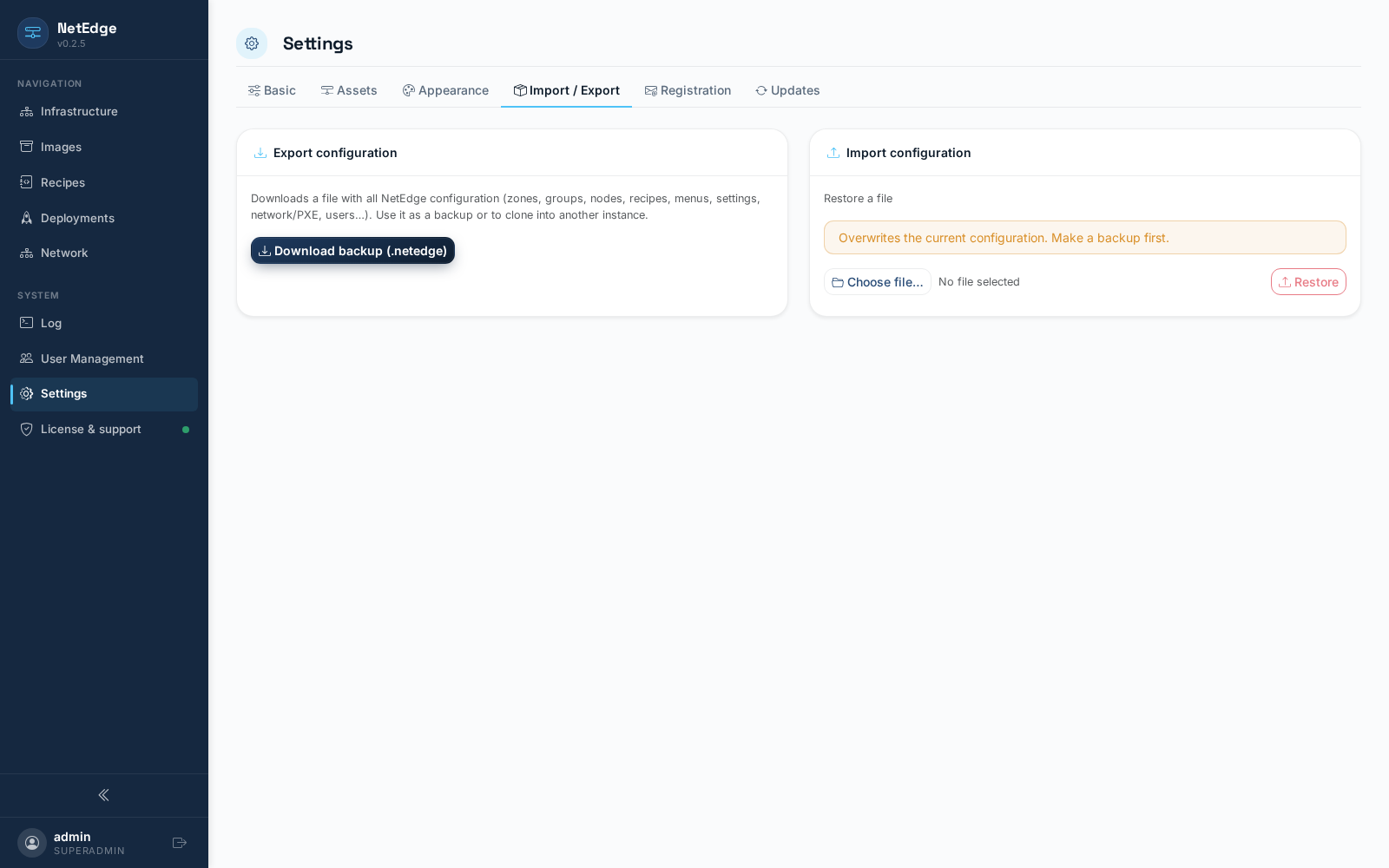
- Export Settings downloads a single file
.netedgecontaining all Your settings — zones, groups, and nodes; recipes; menus; settings for network/PXE, users, and more — a portable backup, or a point as a starting point for cloning this configuration on another server. - Import Settings restores an exported
.netedgefile first, replacing the current configuration with the one in the file. This is destructive — export your data first — and it is recommended that you Restart afterward. For your security, sensitive information such as tokens Session and credentials never leave the server during an export, and the transient runtime data (deployment history, log of (audits, live performance fees) are also excluded, since a restoration It is designed to restore settings, not the day-to-day history.
Registration
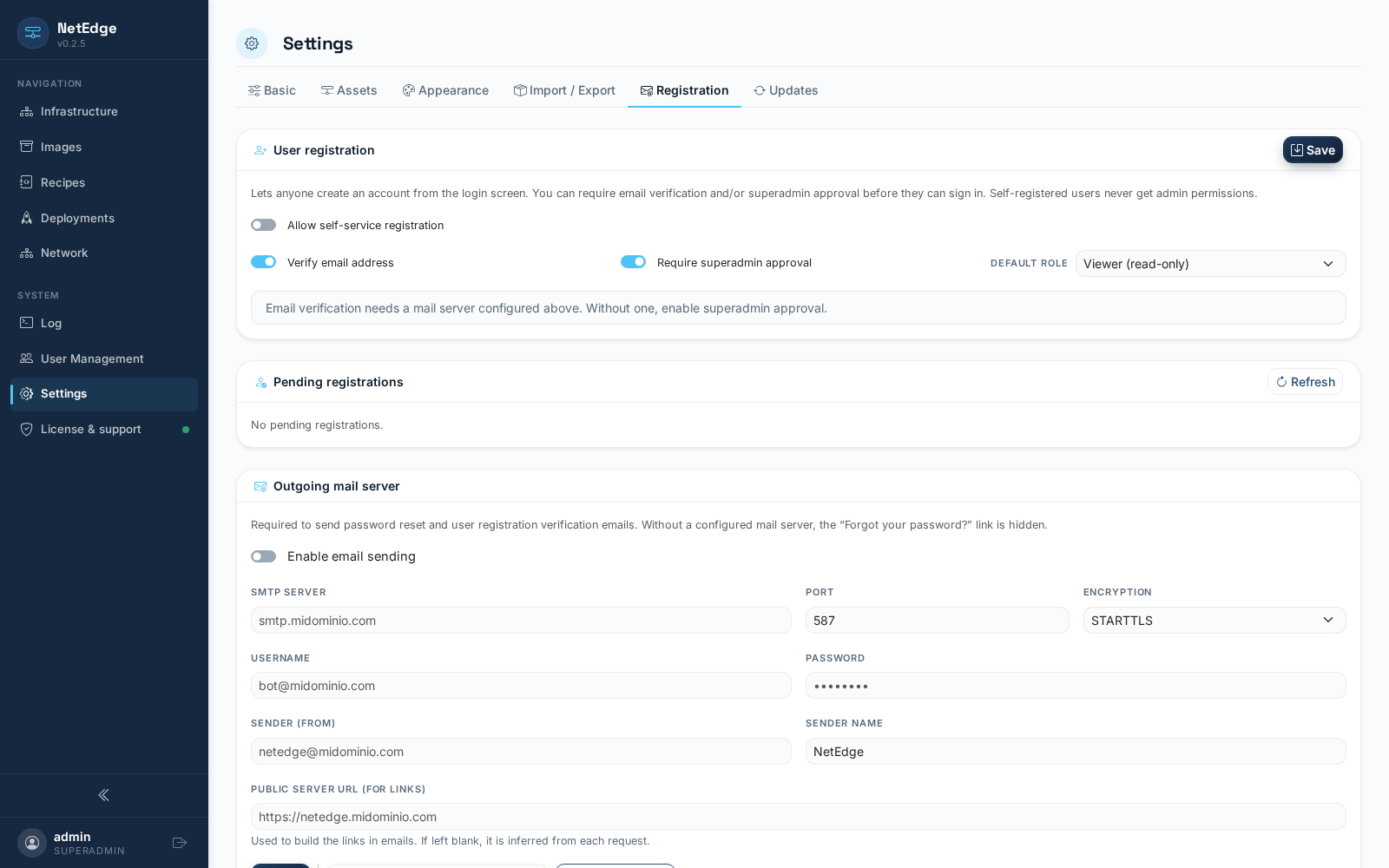
- User Registration — Enable self-service account registration new, optionally requires verification by email and/or approval by a superadmin before an account can log in, and choose the default role assigned to a self-registered account (always a role non-administrative — Viewer or Operator, never Admin). The accounts individual permissions — including the assignment of the Admin or Viewer role — are They manage this from the Users page in the sidebar.
- Pending Registrations — a queue of self-registered accounts pending approval, with buttons to approve or reject each one (the (Approval requires a superadmin account.)
- Outgoing mail server — the SMTP server that uses NetEdge for Send verification and password reset emails: host, port, encryption (STARTTLS / TLS / none), credentials, address, and sender's name, and the public URL used to generate the links within those emails. A Send Test Email button lets you Confirm that the configuration works before relying on it.
Updates
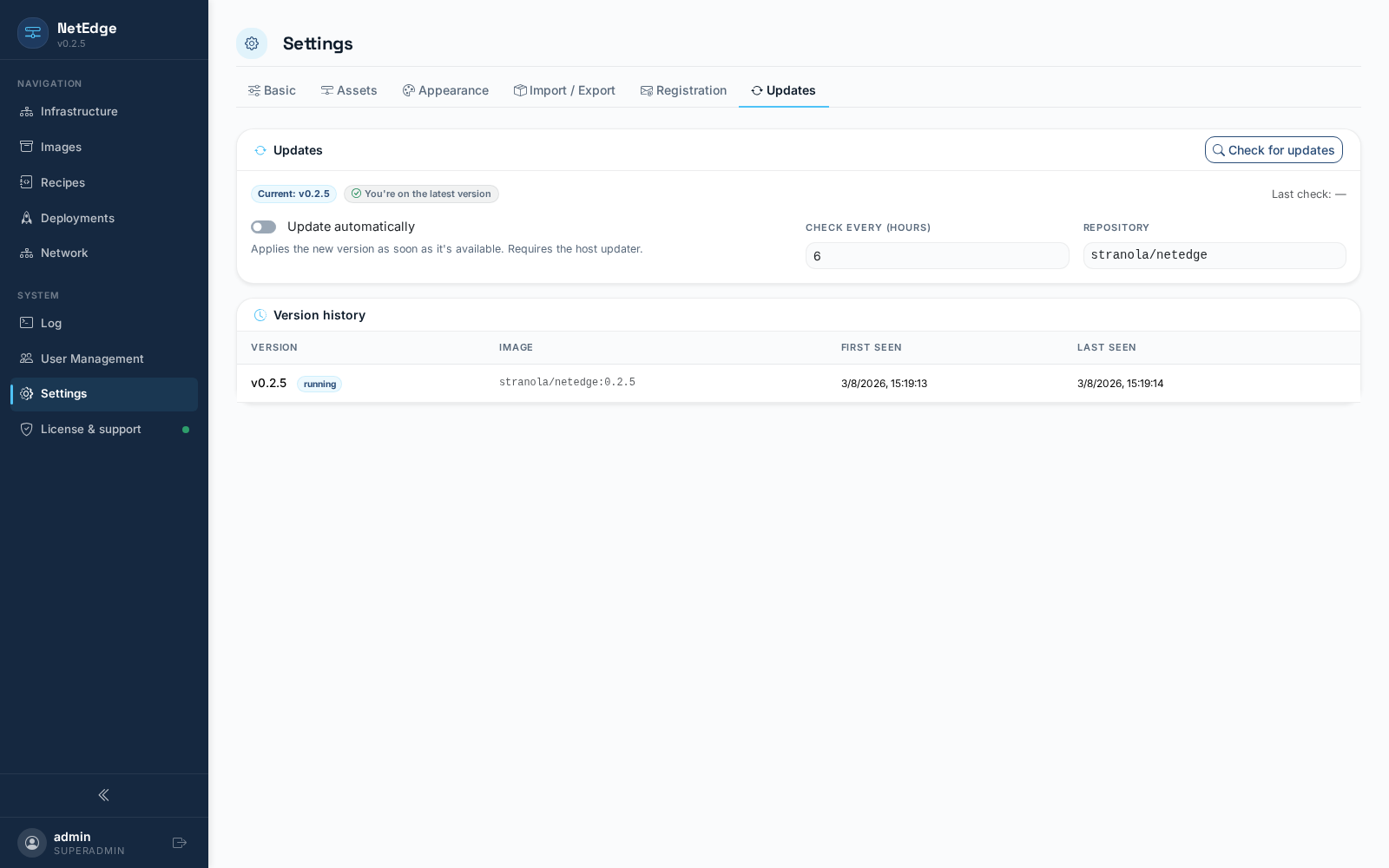
Displays the version currently running and checks if there is a newer one recent version available. Check for Updates triggers a check immediately; if a newer version is found, Update to vX applies it (the service restarts with the new version, with a rollback) automatically if it does not restart properly). A switch automatic updates and a check interval field let you they allow NetEdge to update itself automatically according to a schedule instead to check it manually. A version history table lists all the versions that this installation has run, with a reversion of Click here to go back to the previous page.